How to use
Howtoscanbusinesscards.
From your first AI business card scan to an Excel export or CRM sync—the complete ExpoSnap workflow, exactly as it looks on your phone.
Installintwotaps
Open exposnap.app on your phone. On iPhone: Share → Add to Home Screen. On Android: Install app.
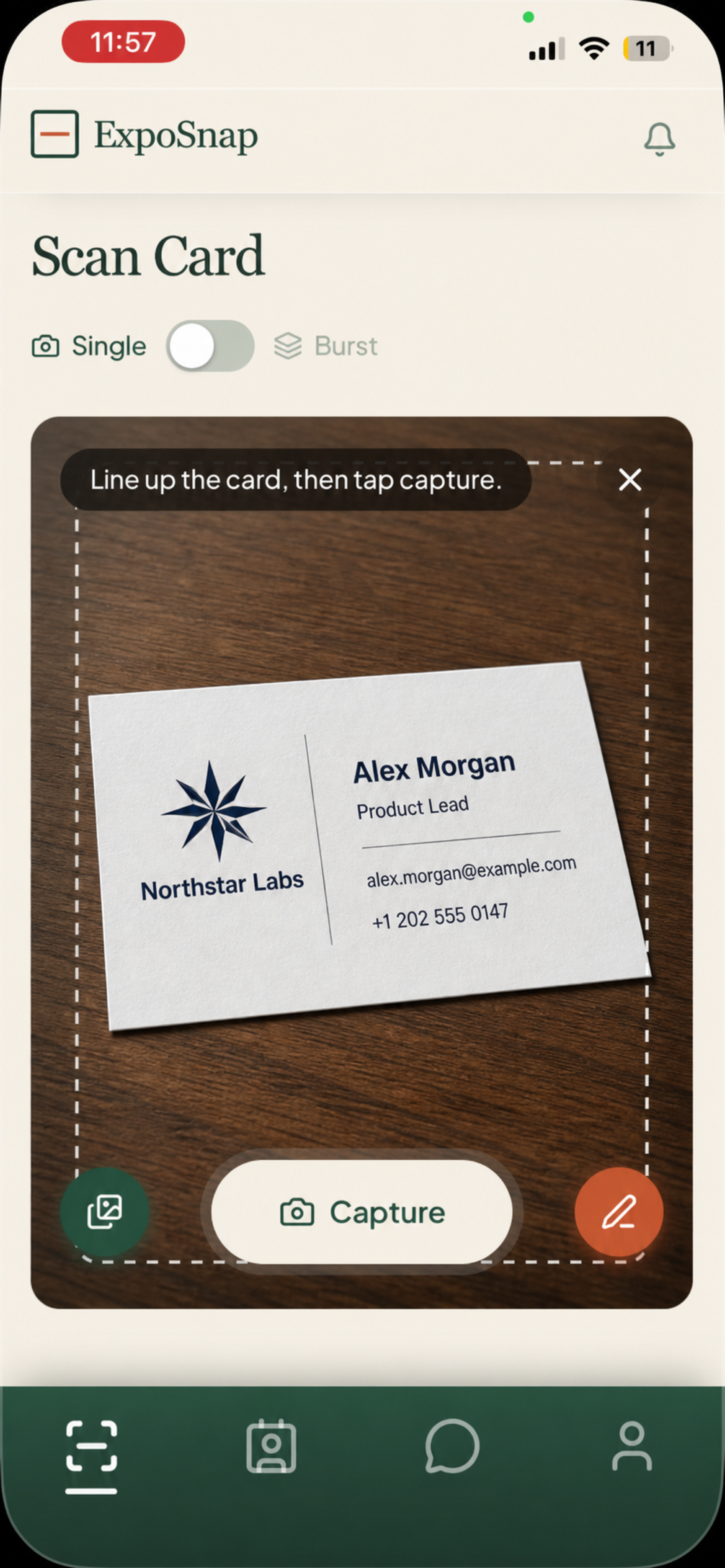
ScanabusinesscardwithAI
The camera is already open. Line the card up in the guide and tap capture — the AI business card reader extracts the contact details in seconds.
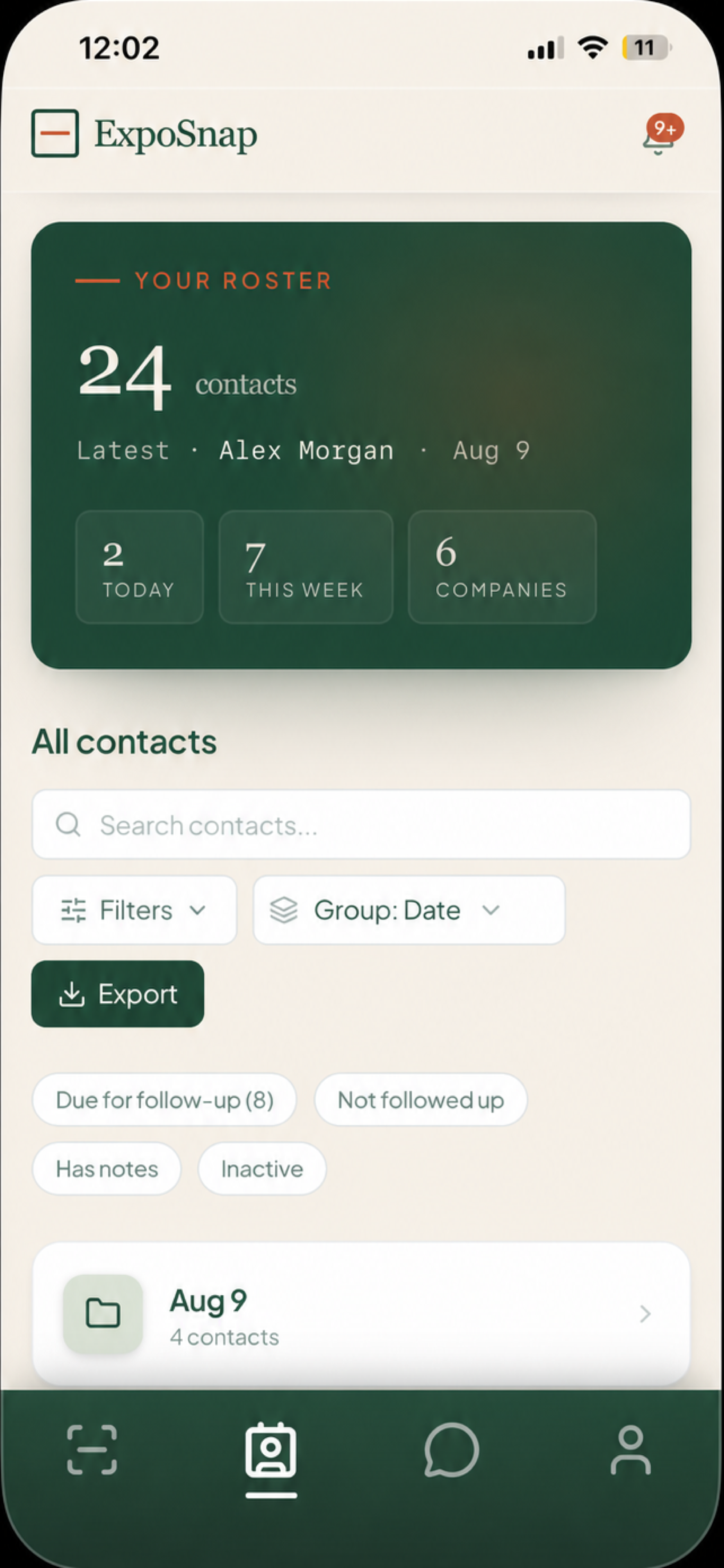
Findeverycontactfast
Saved cards land in a searchable roster, grouped by date and ready for notes, follow-ups, or export.
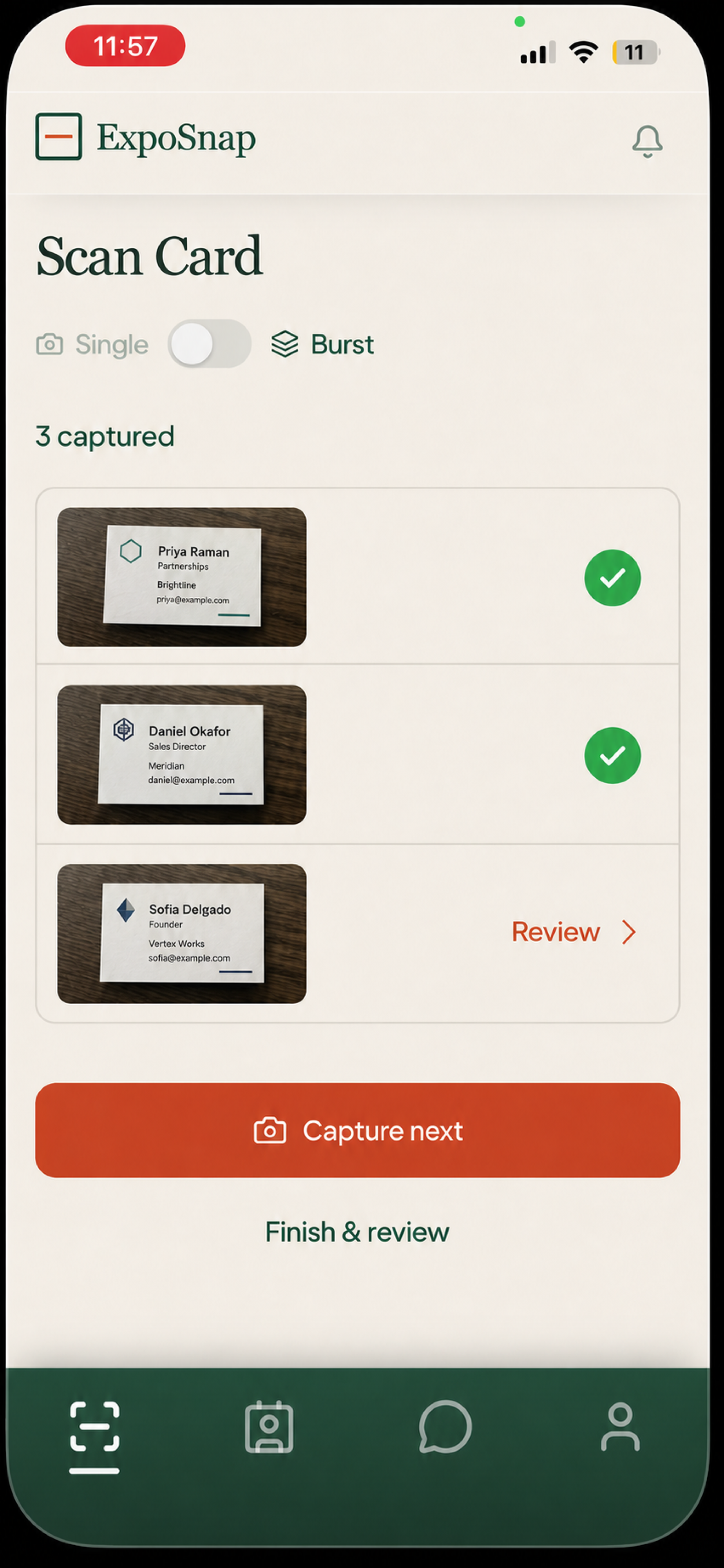
Batchtheboothrush
Flip the toggle to Burst mode and queue a stack of cards — each one is extracted and saved automatically as you go.
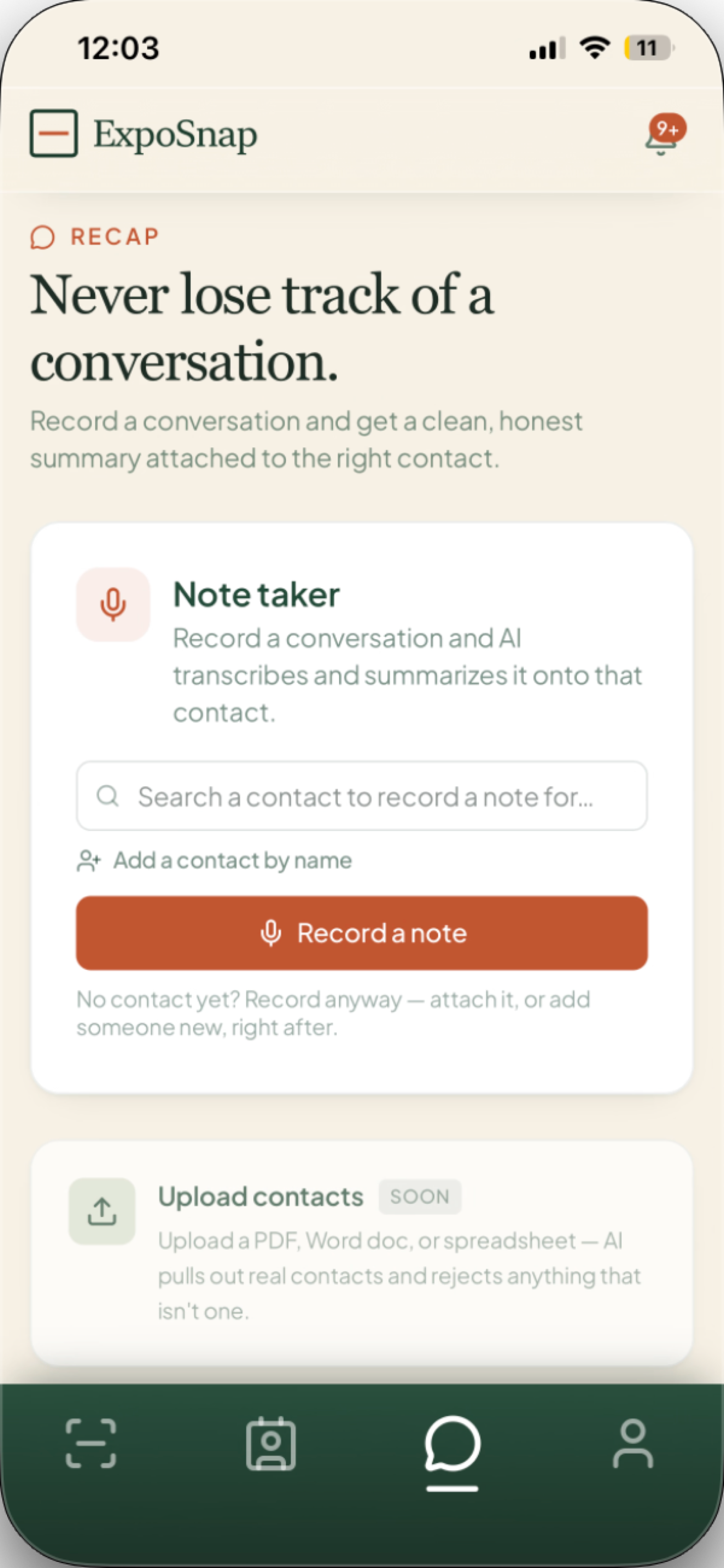
Saywhatmattered
Right after the handshake, hold record and talk for twenty seconds. The note transcribes, summarizes, and stacks on the contact.
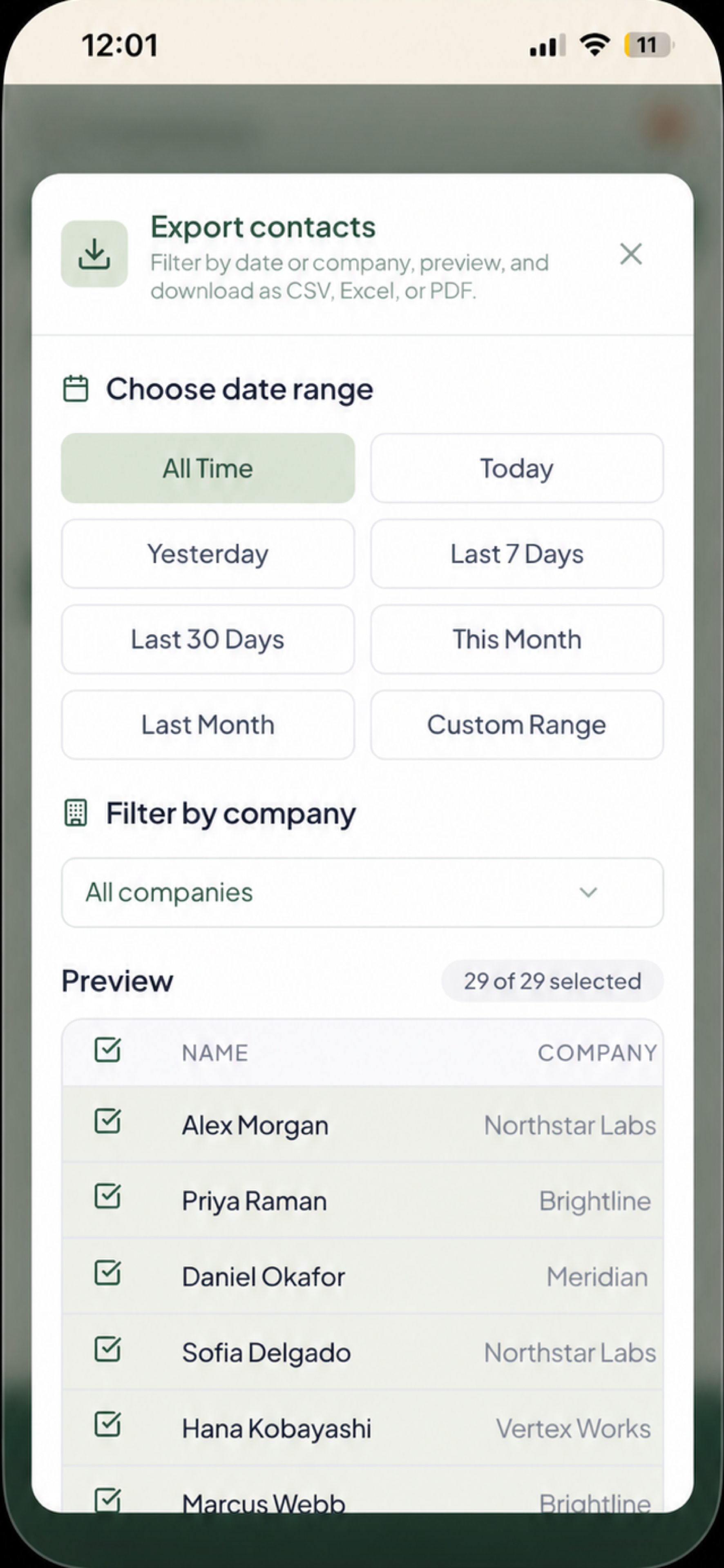
ExportbusinesscardstoExcel
Turn your scanned business cards into one CSV, Excel, or PDF file with CRM-ready columns. Filter by date range or company first.
Beyond scanning
Thecardisjustthestart.
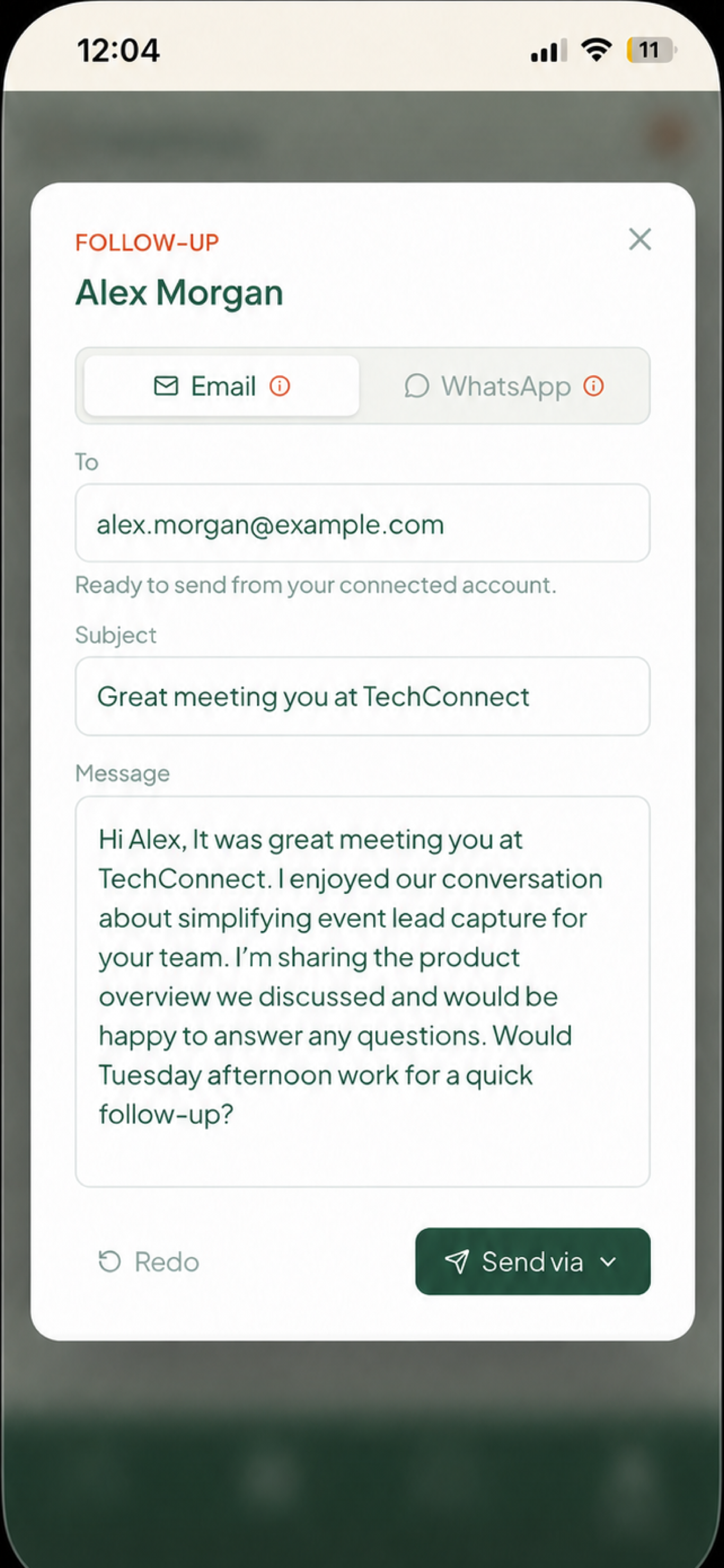
Follow up, drafted for you
Pick a contact and AI drafts a personal email or WhatsApp message grounded in your notes. Review the complete message, then send it from your own account.
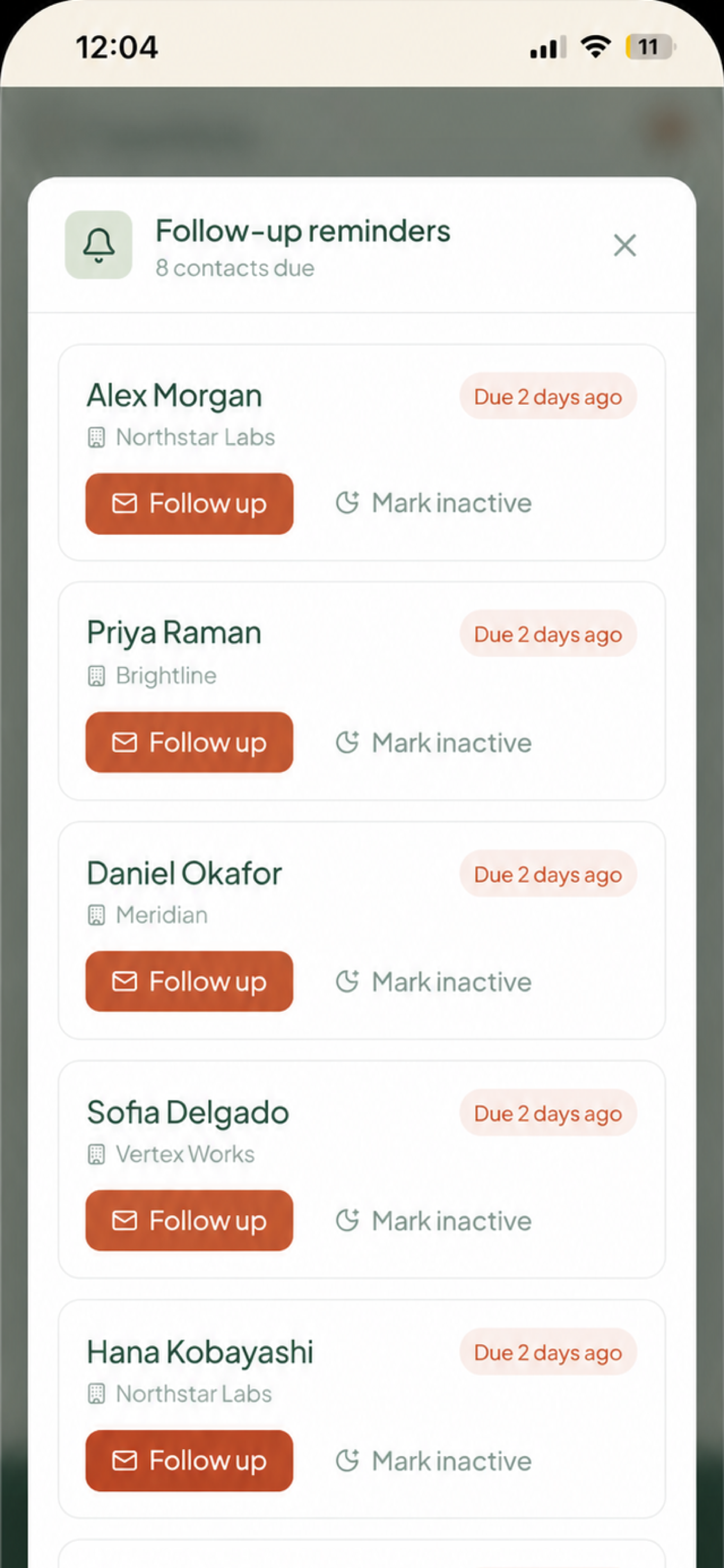
Never miss the follow-up window
See every contact that is due, open a draft in one tap, or mark a lead inactive so the list stays focused.